
Attendance helps your team see who plans to attend an upcoming game, arrange spares, and prepare the game roster. Players and connected parents or guardians can respond through the SportNinja app or web platform. Team Reps and Team Managers can manage responses on behalf of their players.
Important: Marking attendance indicates that you plan to attend. The scorekeeper or timekeeper confirms who is actually present, which determines game-played credit and who appears on the official scoresheet.
Before you begin
Players must have accepted and joined their team for the relevant competition before they can mark attendance or access team chat and notifications. Being listed on a roster alone is not enough.
Players join through either of these routes:
Registration: Complete registration, accept and join the team through that process, and be assigned to a team by an Admin.
Team invitation: An Admin or Team Rep adds your email address to your roster profile and sends a team invite. Create a SportNinja account if needed, or log in to your existing account, then accept the invite.
Team Reps must also receive and accept their own Team Rep invite, through email or in the app or web platform. If you are both a player and a Team Rep, you must accept both invites.
Mark your attendance
1. Log in to the SportNinja app or web platform.
2. Open the upcoming game for your team.
3. Use the attendance options to indicate whether you plan to attend.
Parents and guardians connected to a child's player profile can mark attendance on the child's behalf.
Automatic reminders
72 hours before the game: Players receive a notification asking whether they plan to attend.
24 hours before the game: Players who have not responded to the first notification receive a follow-up reminder.
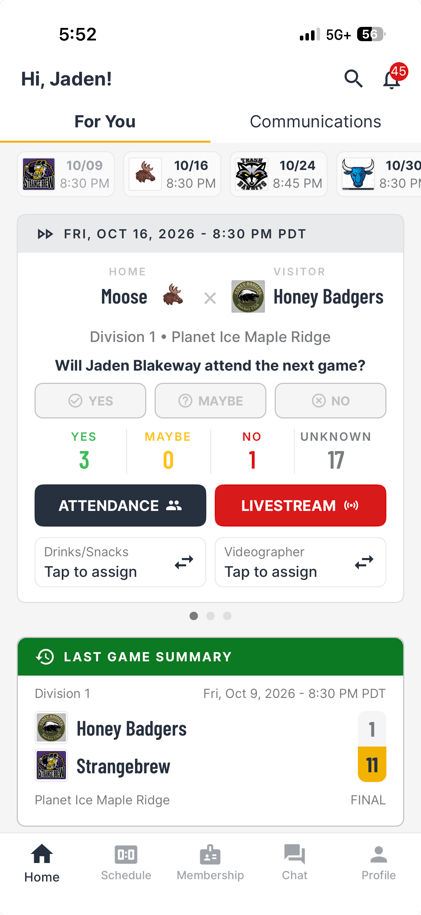
Mobile App - Homescreen
Web/Desktop - Homescreen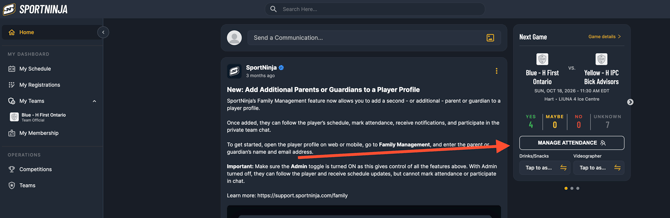
Manage attendance as a Team Rep or Team Manager
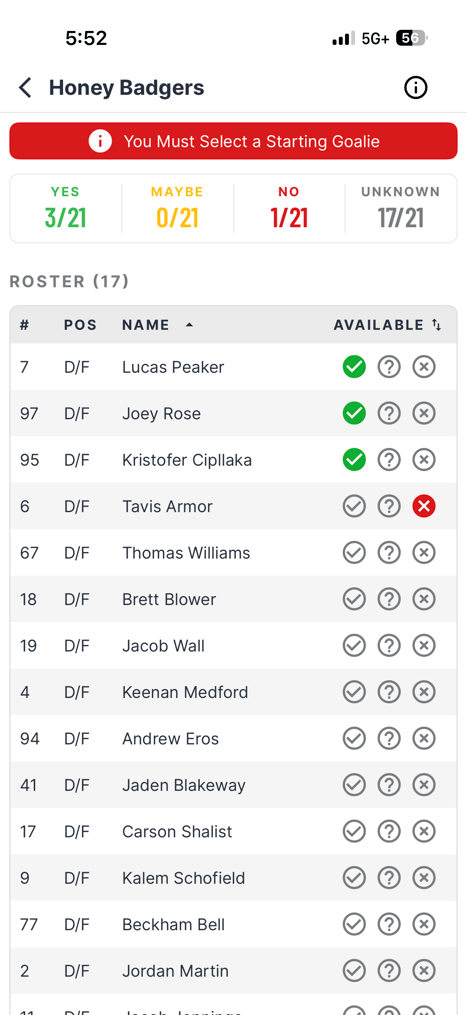
Open the upcoming game and review your team's attendance responses. You can update any player's attendance to reflect the information they have shared with you.
You can also prepare player details for the game:
Edit jersey numbers.
Edit player positions.
Set the starting goalie or keeper.
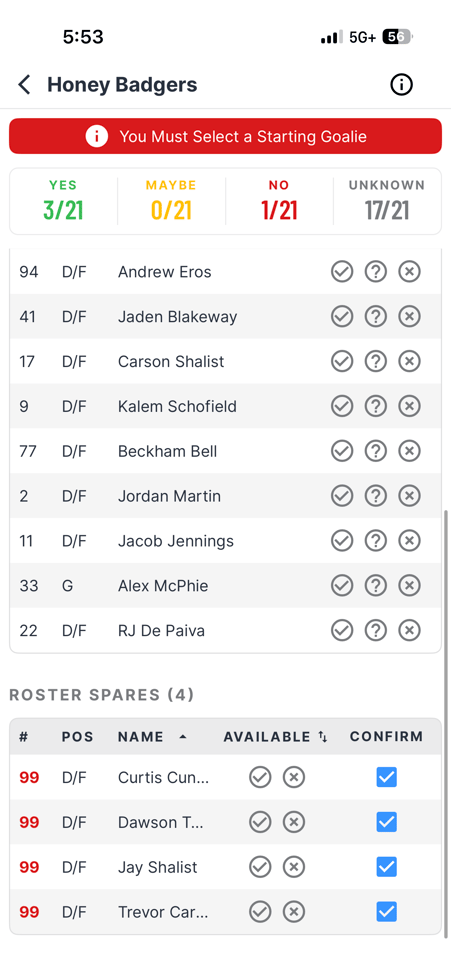
Find and invite a spare
Use Player Finder to search within the competition when your team needs an additional player.
1. Search for a player using Player Finder.
2. Send the spare a notification asking whether they are available.
3. Once the spare confirms availability, promote them to playing for the game.
Coordinate game day responsibilities
Team Reps can also organize the following details for each game:
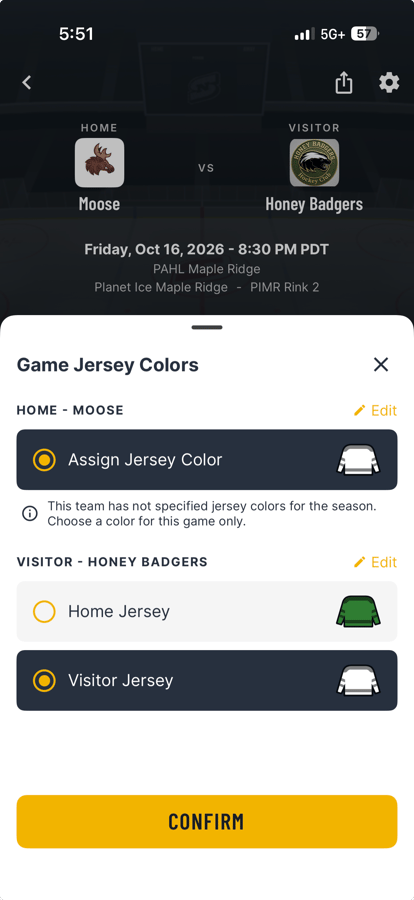
Jersey colours: Set the team's jersey colours for the game on mobile.
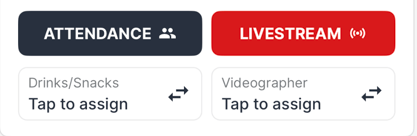
Drinks and snacks: Assign a person to bring drinks and snacks.
Game streaming: Assign or invite a person to stream the game.
Review these details alongside attendance so players know what to bring and who is handling each responsibility.
Confirm the official game roster
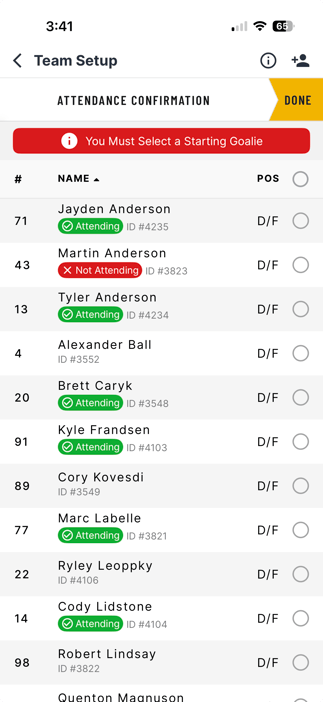
Scorekeepers and Timekeepers can see both teams' attendance responses and use them as guidance when confirming who is actually present. They have final control over the confirmed game roster.
Scorekeepers must confirm rosters before starting to score each full stats game.
1. Review each team's attendance responses.
2. Confirm which players are actually present for the game.
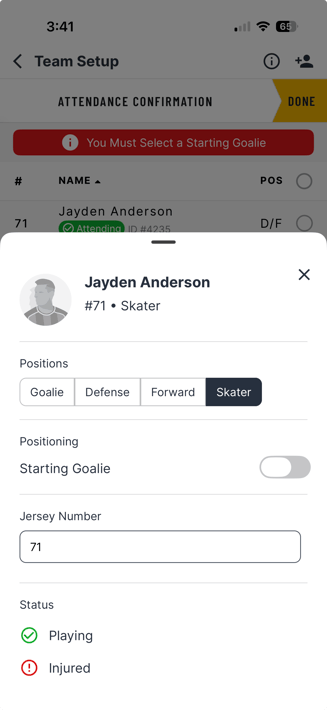
3. Check jersey numbers, positions, and the starting goalie or keeper. Edit these details and add players to the game as needed.
4. Confirm the rosters before starting to score.
A player's attendance response does not automatically give them credit for a game played. Their confirmed presence on the game roster determines that credit and their appearance on the official scoresheet.
Common questions
I am on the roster but cannot mark attendance
Check that you have accepted and joined your team for this competition. If you have not received an invite, ask your Admin or Team Rep to check the email address on your roster profile and send one. Log in to your existing account, or create an account if needed, then accept the invite.
I am a player and a Team Rep but cannot manage attendance
The player invite and Team Rep invite are separate. Accept both invites to access both roles. Accepting the player invite alone does not activate your Team Rep role.
Can I mark attendance for my child
Yes. Parents and guardians connected to their child's player profile can respond on their behalf. If you cannot access your child's attendance, check that your account is connected to the correct player profile and that the child has joined the team for this competition.
Can a Team Rep update my attendance
Yes. Team Reps and Team Managers can update attendance for any player on their team.
Does marking attendance mean I appear on the scoresheet
Your response tells the team whether you plan to attend. The scorekeeper or timekeeper must confirm that you are actually present for you to receive game-played credit and appear on the official scoresheet.
Why did I receive a second attendance reminder
The 24-hour reminder is sent if you have not responded to the first notification, sent 72 hours before the game.