.png?width=180&height=40&name=00-primary%20(10).png)
*Please Note: It is preferable to score on the app (phone/tablet) if possible, as the process has been designed to be smooth and easy. While it is currently possible to score on Web, the current Web scoring workflow requires a few manual steps. We are actively working on improvements to make Web scoring faster and easier.
----------
SportNinja allows authorized administrators to enter or update game scoring directly from the Web application.
Quick Summary
To score a game on Web:
- Open the game and change Game Status → Final
- Open the Timeline tab
- Select Edit Timeline
- Select Edit Roster and confirm participating players and goalies
- Add each Period and confirm its length
- Select Add Event to enter goals, penalties and other events
- Review the Timeline and shot totals
- Select Save Timeline
----------
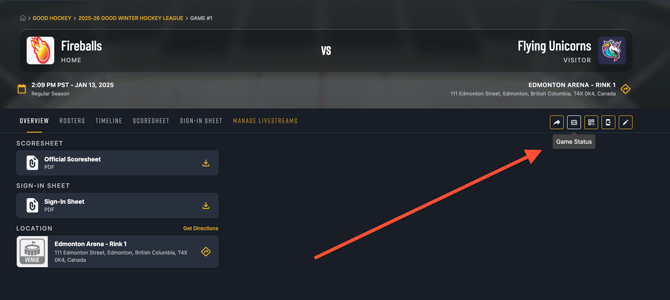
1. Change the Game Status to FinalOpen the game you want to score on Web.
In the upper-right corner of the game, select the Game Status button (calendar icon).
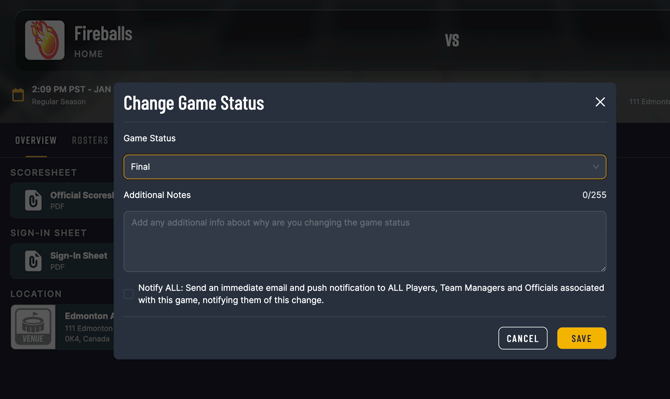
Select Final as the Game Status and click Save.
You will be asked to confirm that you want to end the game. Select End Game to continue.
Note: Although the game is set to Final at this stage, you can still enter the game roster, periods and scoring information using the Timeline.
2. Open the Timeline
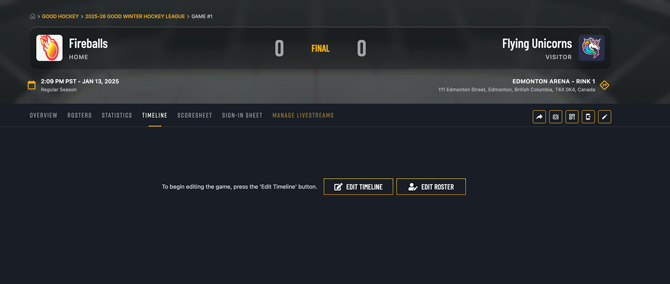
Select the Timeline tab from the game navigation.
Click Edit Timeline to begin entering the game information.
You will now see options to:
- Edit the game roster
- Add periods
- Add game events
- Edit shots
- Save the completed timeline
3. Confirm the Game Rosters
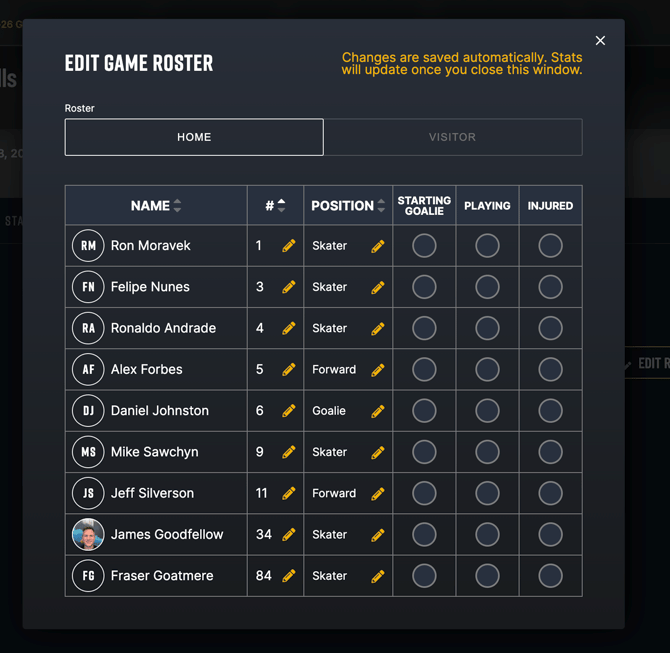
Before entering scoring events, select Edit Roster.
For both the Home and Visitor teams:
- Confirm which players participated in the game by selecting Playing
- Confirm player numbers and positions if required
- Select the Starting Goalie, if applicable
- Mark injured players if needed
Roster changes are saved automatically. Close the roster window when you are finished.
4. Add the Game Periods
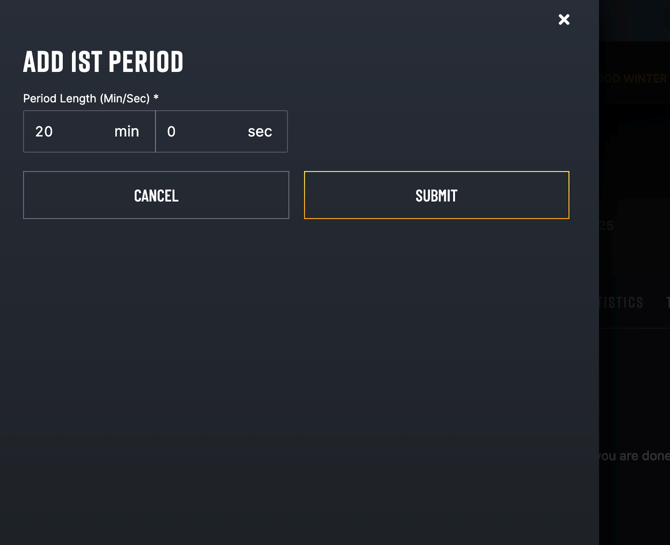
From the Timeline, select Add 1st Period.
Enter the appropriate Period Length and select Submit.
For example, a standard period may be entered as:
20 min : 00 sec
Once the first period has been added, you can add the next period using Add 2nd Period, and continue until all required periods have been created.
Select Add Event.
Choose the appropriate event type. Depending on the game configuration, available events may include:
- Goal
- Penalty
- Goalie Change
Then select the team associated with the event.
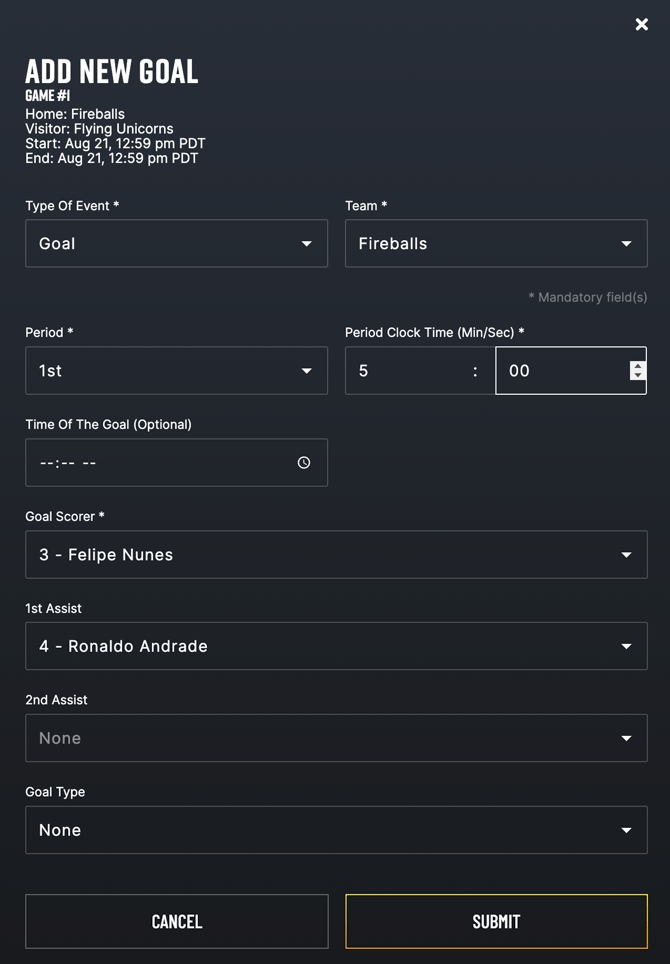
Adding a Goal
For a goal, enter:
- Team
- Period
- Period clock time
- Goal scorer
- 1st assist, if applicable
- 2nd assist, if applicable
- Goal type, if applicable
Select Submit to add the goal to the Timeline.
Repeat this process for each goal, penalty or other game event.
6. Review the TimelineAs events are added, they will appear under the appropriate period on the Timeline.
Review the Timeline and make any required corrections using the Edit icons beside individual events.
You can also update the Home and Visitor shot totals from the Timeline if required.
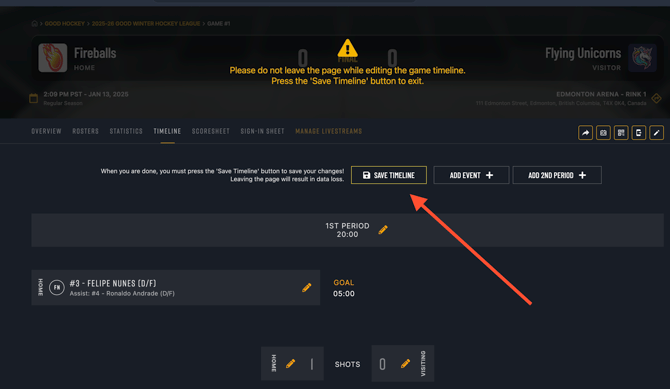
7. Save the TimelineWhen all periods, scoring events and other game information have been entered, select:
Save Timeline
This step is important. Changes made while editing the Timeline are not saved until you select Save Timeline.
Do not leave or refresh the page while editing the Timeline. Doing so may cause your unsaved changes to be lost.
Once the Timeline has been saved, the game results and statistics will update based on the information entered.
Important
Roster changes save automatically. Timeline changes do not. Always select Save Timeline before leaving the page.
SportNinja is actively improving the Web scoring workflow to make this process faster and more streamlined.