.png?width=180&height=40&name=00-primary%20(10).png)
Overview: SportNinja has a fully-integrated Schedule creation feature!It allows you to enter your available timeslots, edit divisions, define and prioritize custom constraints then generate and publish your scheduled games by division.
This feature is in early-release BETA period. We are continuously iterting and improving upon this.
*NOTE: This scheduler is currently designed toward creating Season-based schedules. We are in the process of adding the ability to create Tournament schedules (with custom brackets, etc).
-----
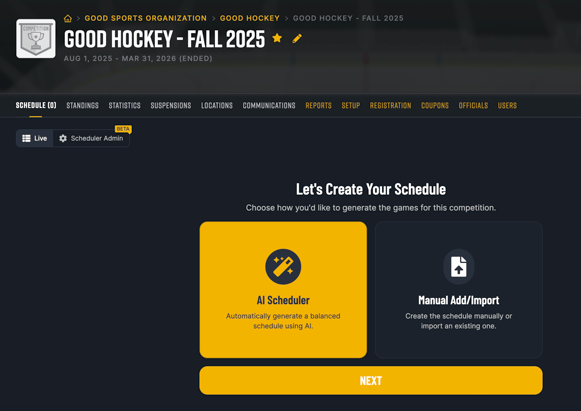
Welcome to the Schedule Builder
Build your game schedule in four simple steps: set up locations & time slots, organize divisions & teams, fine-tune constraints, then generate and review. Let’s take a quick tour.
Your 4-Step Workflow
Follow these tabs left to right. Jump between steps anytime.
- Locations & Time — Add venues, surfaces, and available time slots.
- Divisions & Teams — Organize divisions and assign teams.
- Constraints — Set rules like rest days, blackouts, and limits.
- Generate Schedule — Generate, review, and publish your schedule.
----------
1. Locations & Times
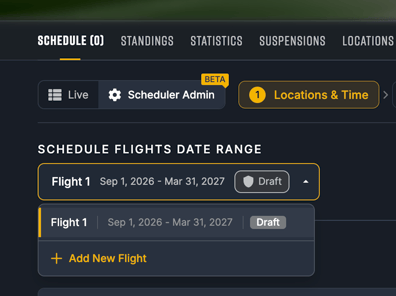
Flights
Flights divide your season into separate scheduling periods. Each flight has its own date range, time slots, and generated schedule — think of them as phases of your season.
For example, use Flight 1 for the fall season (Sep–Dec) and Flight 2 for winter (Jan–Mar), each with different venues or time slots.
Note: If you're generating your full season schedule at once, you only need one flight.
Locations
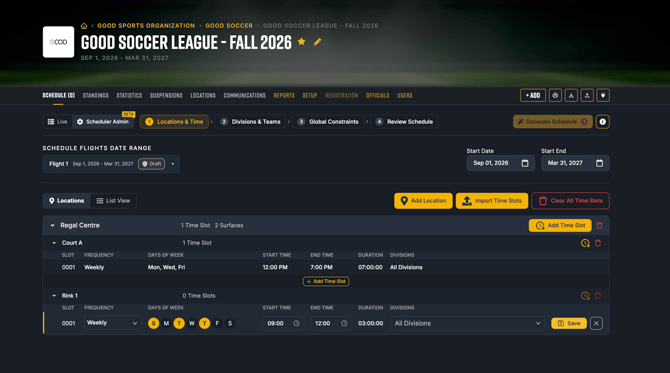
Add your existing Locations to the Competition by selecting them. All of the available surfaces should appear. If your location does not exist. Go to the Location tab and Add it first.
Time Slots
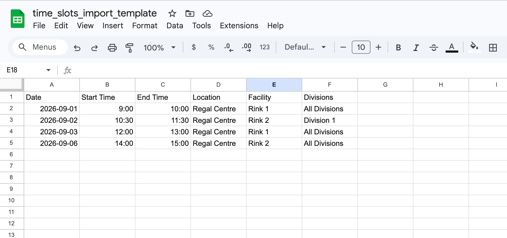
Once your Locations have been added you can add your available timeslots on each surface. You can add them manually (eg. in the case of recurring weekly slots) OR import a list of specific time slot dates using the import tool. Export a copy of the template and populate (Note: The system will expect the Location Name and Surface (facility) name to match what's in the system.
Time Slot Import:
----------
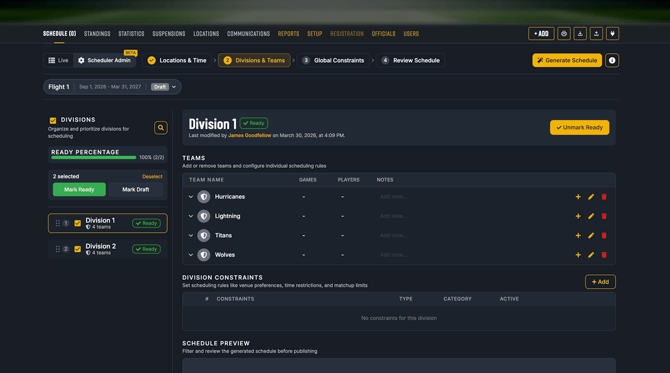
2. Divisions and Teams
With Registration feature:
If you are using Registration - all of your Divisions and Teams will either come via new registrations OR added by Admins on the Registration tab.
NOT using Registration feature
If you are NOT using the Registration feature, add your Divisions and Teams directly on the Set-up Tab.
* Where needed Admins can add Teams to serve as placeholders in order to create a schedule with the correct number of teams for the division (eg "Team 8"). You can simply update the teams name and add the team managers when you know them.
----------
3. Constraints
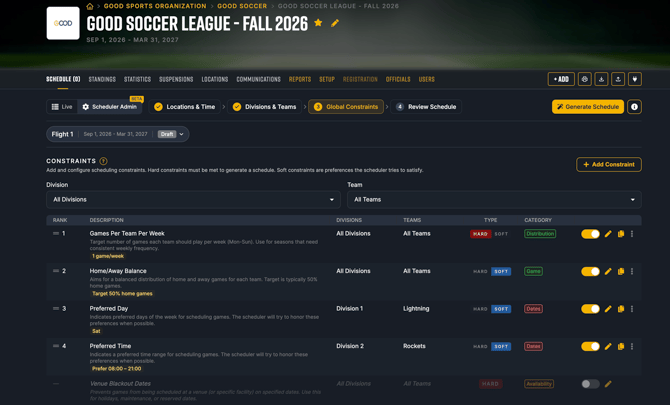
Constraints are rules or preferences for the Scheduler to take into consideration when scheduling.
Examples:
- Holidays, Bye Weeks, Blackout Dates
- Team Preferences (for days they are available or not available, or preferred)
- Ideal Number of Games per week per Team
- Achieve a balance per team, per division of: total number of games, even match-ups (not playing same team over and over), number of home/away games)
Use any of our standard constraints, or clone and customize them.
Hard vs. Soft
Hard constraints must be met to generate a schedule. Soft constraints are preferences the scheduler tries to satisfy.
All Divisions vs. Div Specific vs. Team Specific
You can specific what level the constraint should be to applied to.
----------
4. Generate Schedule
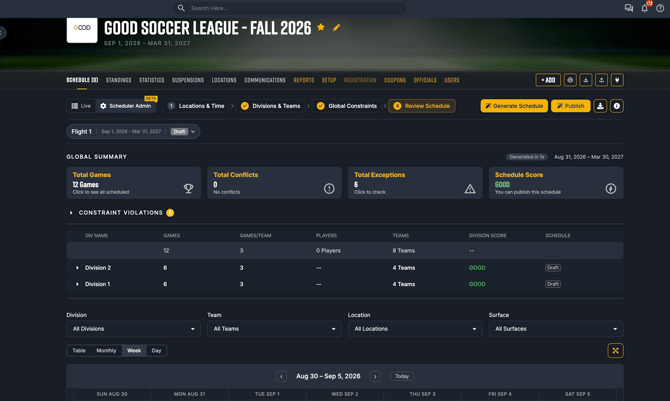
Generate the Schedule at any time - by one or more Divisions.
After Generating you can review before Publishing Live.
You can adjust your constraints or the priority order (or any other schedule entity) then re-generate as needed.
Once published it will show for ALL teams and participants publicly on the "LIVE" Schedule tab.
End users will not see the Live or Schedule Admin buttons - they will simply see the schedule when it is published.
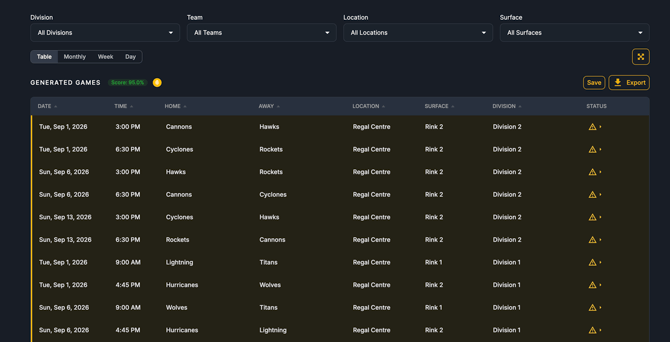
List View: (exportable)
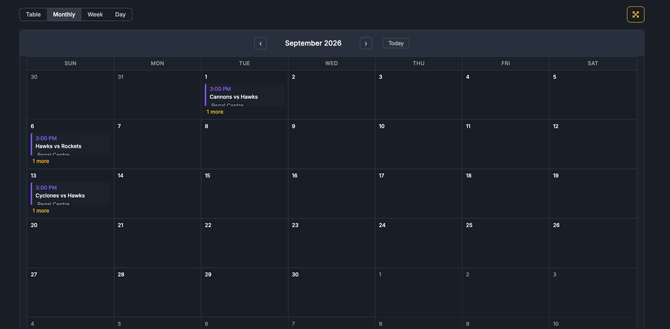
Calendar View:
4. Edits / Changes to Live Schedules
It is not currently possible to edit any specific games in DRAFT mode. However, once a schedule is published, you can edit any game manually by clicking into it. OR edit by Exporting the schedule, editing and importing (Import/Export Article).
To unpublish a schedule (or bulk delete games in a schedule), follow these steps using within the export/import.
---------------------
With any questions, issues or feedback on this feature, please don't hesitate to create a support ticket here.
We will respond as quickly as possible to help. This feature is still in beta and continuously being enhanced. Thanks!