.png?width=180&height=40&name=00-primary%20(10).png)
SportNinja allows you to assign referees, scorekeepers, and timekeepers to individual games. Officials can currently be assigned from either the mobile app or web, with schedule-file assignment coming soon.
This article also explains the difference between assigning someone to a game and giving them Scorekeeper access to a Competition.
Before You Start: Add Your OfficialsFor larger leagues or facilities, we recommend adding your officials to SportNinja before assigning individual games.
On Web, officials can be added at the Competition level or, where applicable, at the Organization level so they can be available across the Competitions underneath it.
When adding an official, you can include their email address and send them an invitation. The official can then accept the invitation and create or connect their SportNinja user account.
Once your list of officials has been added, they can quickly be selected when assigning games.
Option 1: Assign Officials on Mobile
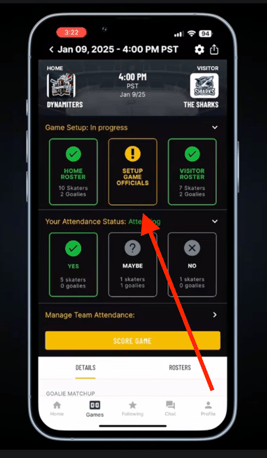
Officials can be assigned directly from any game in the SportNinja mobile app.
- Open the Game.
- Under Game Setup, select Setup Game Officials.
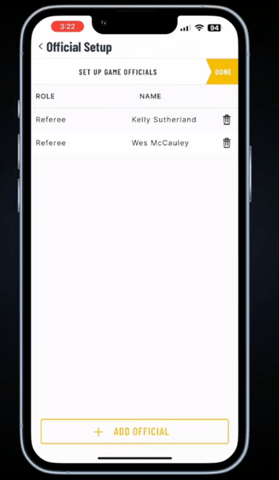
- Select Add Official.
- Search for an existing official and select them.
- Assign the appropriate role, such as:
- Referee
- Scorekeeper
- Timekeeper
- Repeat as required and select Done when finished.
If the person has not already been added as an official, you can also select Create New Official.
Officials assigned to the game will be displayed within the game's Official Setup.
Option 2: Assign Officials on Web
League administrators can also assign officials directly from the Schedule on Web.
- Open the appropriate Competition.
- Go to the Schedule tab.
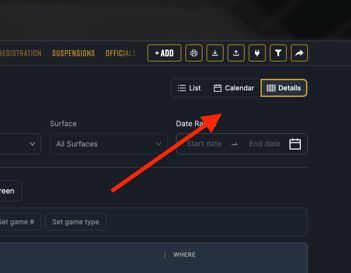
- Switch the Schedule to List or Details view.
- Locate the game you want to update.
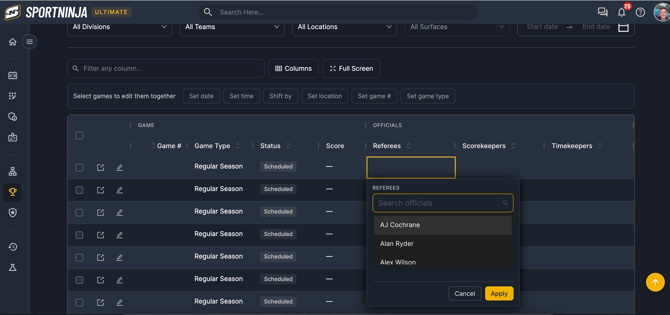
- Select the appropriate Referee, Scorekeeper, or Timekeeper field.
- Search for and select the official you want to assign.
- Apply the selection.
This makes it easy to work through a large schedule and assign officials without opening each individual game.
The Schedule views can also be filtered by Division, Team, Location, Surface, Date Range, and other fields to make larger assignment jobs easier to manage.
Coming Soon: Import and Export Official Assignments
Support for official assignments through the Schedule import/export file is coming soon.
This will allow administrators to export a schedule, enter or update referee, scorekeeper, and timekeeper assignments in bulk, and import the updated schedule back into SportNinja.
Scorekeeper Access
It is important to understand that Scorekeeper permissions are not dependent on being assigned to a specific game.
A user with Scorekeeper access to a Competition can work with any game within that Competition, whether or not their name has been assigned to the individual game.
Depending on the access granted, a Scorekeeper can:
- Change the status of a game, including marking games as cancelled, forfeited, or otherwise updating their status.
- Send associated email, push notification, and game notes when updating a game.
- Check in and confirm each team's game roster.
- Confirm or update the officials working the game.
- Set up and score the game.
- Finalize the game and publish the result.
- Reopen a completed game.
- Correct or edit game events and statistics after the game.
- Perform game management functions from either Web or Mobile where supported.
To receive this access, the user simply needs to be invited as a Scorekeeper and accept the invitation, with access granted to the appropriate Competition or Organization.
They do not need to be individually assigned as the Scorekeeper on every game.
Facility / Shared Device Setup
Facilities with dedicated scoring tablets or iPads at each surface can also use a shared Scorekeeper account.
For example, you can:
- Create a generic scoring email/account for the facility or surface.
- Invite that account into SportNinja with Scorekeeper access.
- Accept the invitation and keep the SportNinja account logged in on the scoring device.
- Leave the device available at the rink, field, court, or scoring table.
Whoever is working the game can then use that device to open the appropriate game, confirm the rosters and officials, score the game, and finalize the result.
The names of the actual referee, timekeeper, and scorekeeper working the game can still be selected or updated as part of Game Setup.
This is particularly useful when the person physically operating the scoring device changes from game to game.
What Can Referees and Other Officials Edit?
Being assigned to a game as an official does not automatically provide administrative access to the Competition.
Referees and other officials without additional permissions cannot edit scheduled games or manage team rosters simply because they have been assigned to the game.
Access is controlled by the user's SportNinja role and permissions.
Administrators and League Managers
Administrators and League Managers have full game-management access for the Competitions they manage. This includes editing games, managing rosters, assigning officials, scoring games, finalizing results, reopening games, and making corrections.
Team Managers
If desired, a Competition can also be configured to allow Team Managers / Team Officials to set up and score games involving their teams.
This permission is controlled through the Competition settings.
Assignment vs. Permission
A useful distinction is:
Game Assignment identifies who is scheduled to work a particular game.
User Permissions determine what that person is allowed to do in SportNinja.
For example, a referee may be assigned to Game #100 but have no ability to modify the schedule or rosters. A Scorekeeper with Competition-level access, meanwhile, may be able to score Game #100 even if they were never specifically assigned to it.
Related Resources
For a complete explanation of the different user roles available in SportNinja, see:
For an example of the complete mobile scorekeeping workflow using full-stat hockey scoring, watch: